Logging in for the first time: Hit the “Forgot your password?” link on the login page to get a link sent to your email, so you can set your password for the system.
Login Page: https://members.icegroup.org/portal


Change your individual profile: Click on “Edit this profile” in the menu bar.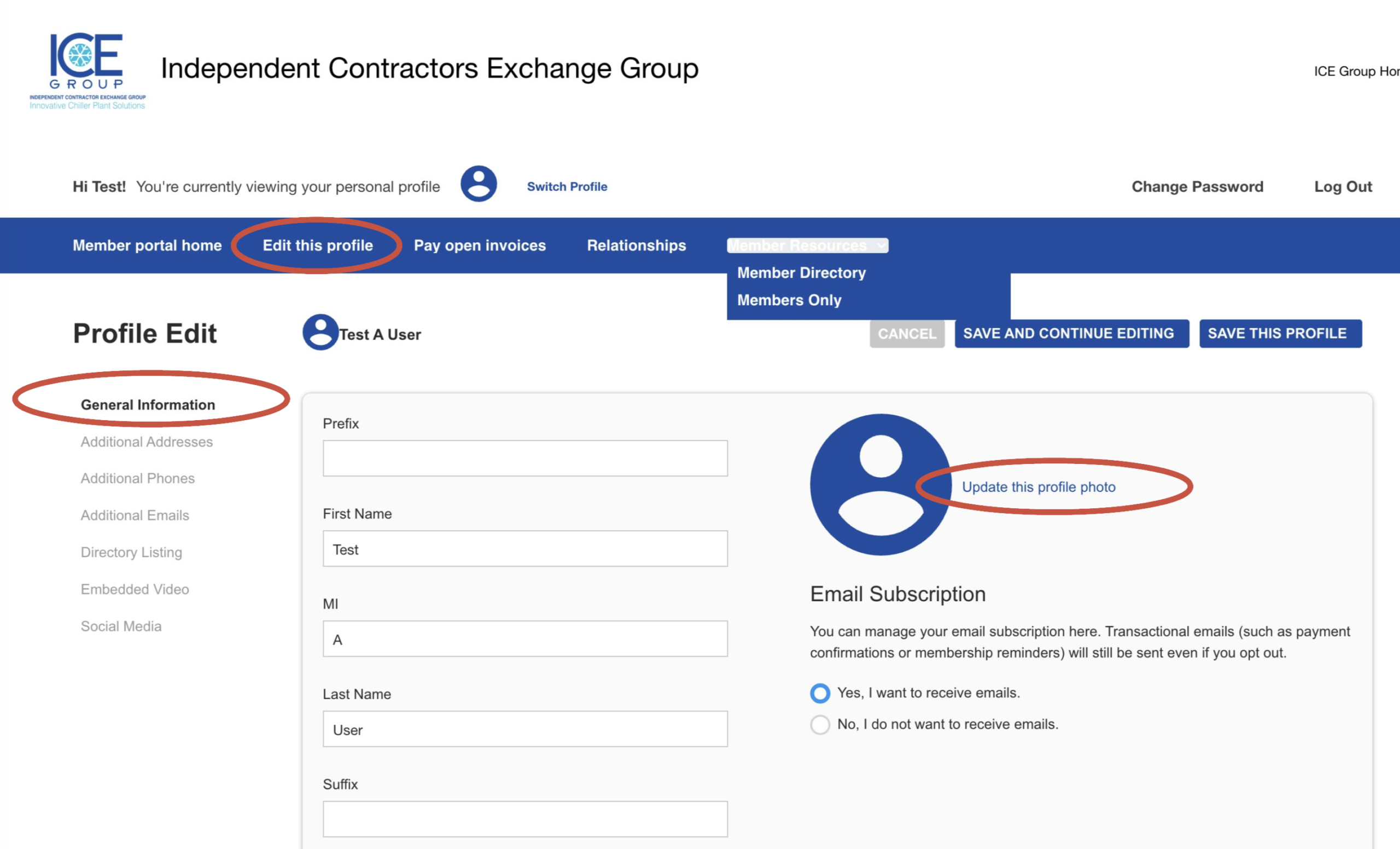
Add yourself to the Directory:
- On the Profile Edit page, select “Directory Listing”
- Under “Category”, select “ICE Company Emloyee”
- Click the “Add” button above the category selection.
Add/Remove users from your company (only available to Main Contacts):
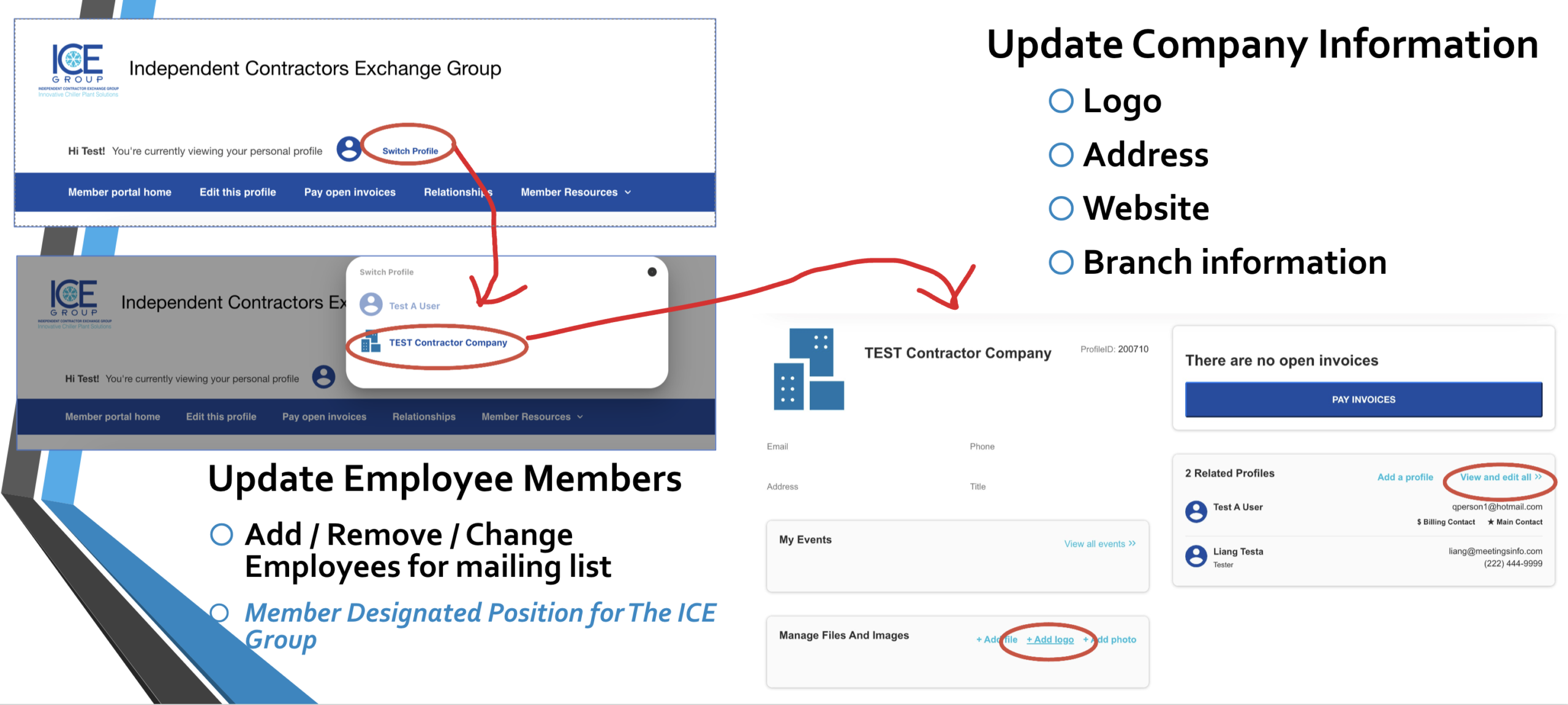
- Click on “Switch Profile” above the menu bar and select the company.
- Click on “View and edit all >>” towards the bottom, next to “Related Profiles” to view all users from your company.
- Click on the “Add a profile” button on the right to add a new user.
- Click the “Actions” button next to a user in the table and select “Delete” if you would like to remove a user.
You can also add your company logo via the “+Add logo” link next o “Manage Files and Images”.